

If you want to fix slow startup in Windows, the two changes that move the needle most are cutting down startup programs and, on older machines, swapping a mechanical hard drive for an SSD. Almost everything else — Fast Startup, a BIOS tweak, smarter update timing — shaves off seconds on top. Before changing anything, it helps to find out what’s slow, because the fix for a sluggish drive is different from the fix for a dozen apps all launching at once. Here’s the practical order to work through, from the free five-minute fixes to the one upgrade that makes the biggest difference.
First, find out what’s actually slow
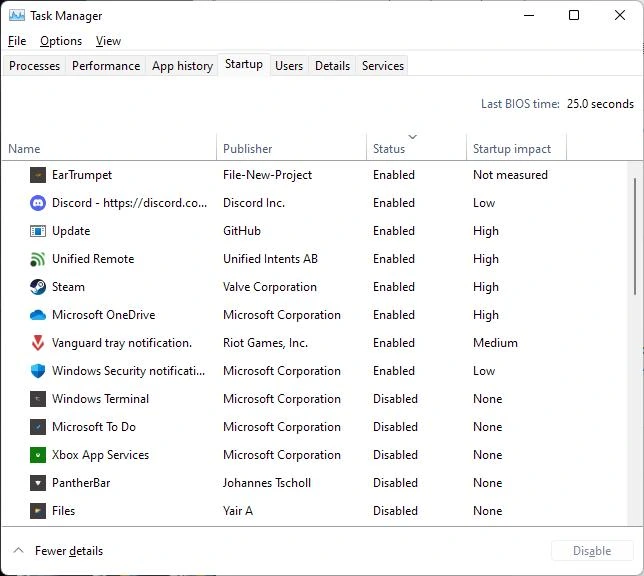
Guessing wastes time. Windows already tells you where the delay is, in two places inside Task Manager.
Press Ctrl-Shift-Esc, open the Startup apps tab, and look at the top-right corner for Last BIOS Time. That number is how long your motherboard takes to hand control to Windows. A second or two is normal; anything past five or six seconds points at the firmware, not Windows, and means the BIOS section below is where your fix lives. The same tab lists every program that launches with the PC and rates its startup impact as Low, Medium or High. Those two readings tell you whether you’re fighting slow firmware, a crowded startup list, or an old drive that’s slow at everything.
Trim your startup programs
This is the most common cause of a slow boot and the easiest to fix. Every app set to launch with Windows competes for the disk and CPU the moment you log in, so a long list turns a usable desktop into a thirty-second wait.
In that Startup apps tab, disable anything marked High impact that you don’t need running the instant you log in. A launcher like Epic Games or Steam doesn’t need to start with the PC; something like a cloud-sync client you rely on all day might earn its place. Toggle off the rest. If an app keeps re-enabling itself, dig into its own settings and uncheck “start with Windows” there, since some programs re-add themselves on launch.
Two more spots catch stragglers. Settings > Apps > Startup mirrors the same list with simple switches, and the hidden Startup folder holds shortcuts that auto-launch. Paste %APPDATA%\Microsoft\Windows\Start Menu\Programs\Startup into File Explorer’s address bar, and delete any shortcut you don’t want firing at boot.
Turn on Fast Startup
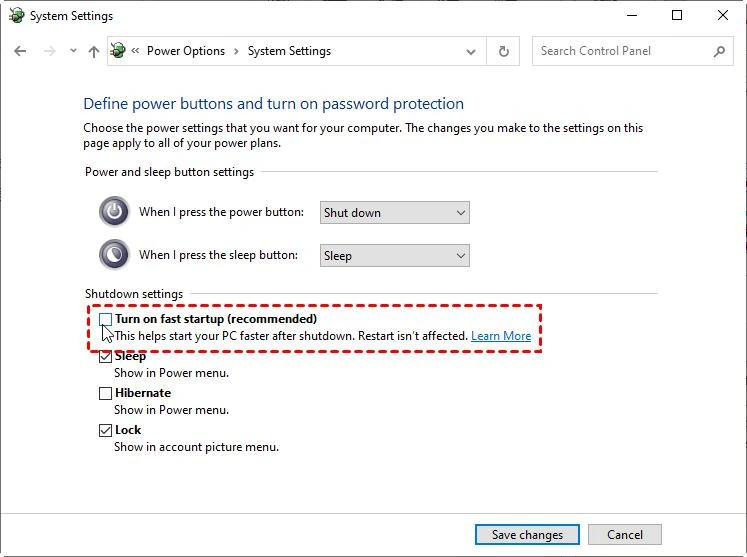
Windows has a built-in Fast Startup option that often gives the quickest free win. It’s a hybrid between a full shutdown and hibernation: when you shut down, your open apps close as normal, but the core system state is saved to disk so Windows can reload it faster than building everything from scratch.
Open Control Panel in Icon view, choose Power Options, then Choose what the power buttons do. If “Turn on fast startup” is greyed out, click Change settings that are currently unavailable first, tick the box, and save. One caveat keeps it from being a cure-all: it only affects shutdowns, not restarts. If you need to reach the BIOS or finish a stubborn Windows Update, you’ll still have to use Restart. Dual-boot users sometimes turn it off entirely, since the saved state can interfere with other operating systems.
Enable Fast Boot in the UEFI/BIOS
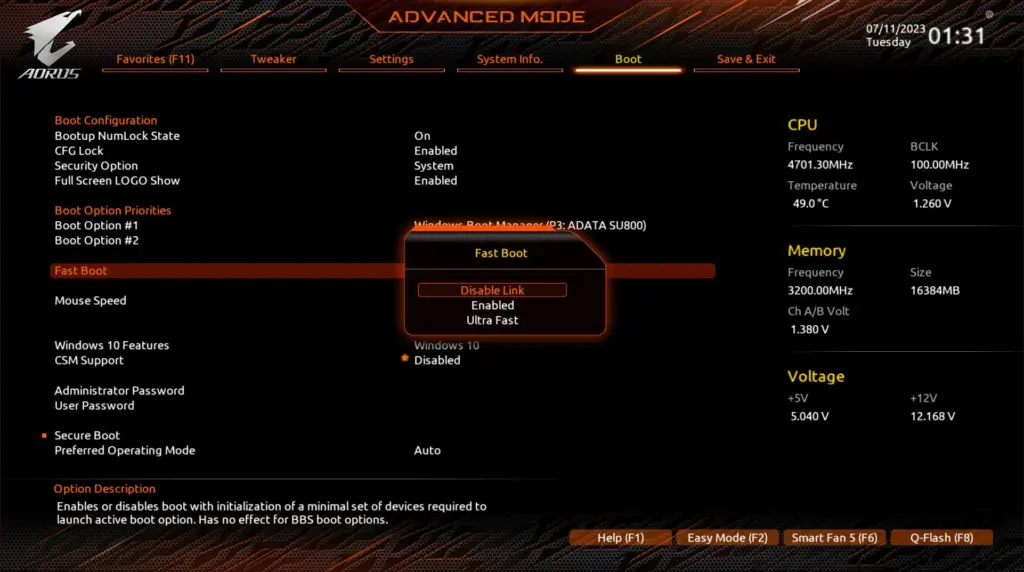
If Last BIOS Time was the high number, this is your section. Many motherboards have a Fast Boot setting that skips some of the hardware self-tests the system runs at power-on. It’s separate from Windows’ Fast Startup and works at the firmware level.
Reboot and press the key shown on the startup screen to enter setup — it varies by manufacturer, often Delete, F2, or F12. Find the Fast Boot option and enable it. While you’re there, you can confirm your Windows drive sits at the top of the boot order so the system doesn’t waste time checking a DVD or network boot first, though in practice that rarely changes much. Skip Fast Boot if you overclock or open the BIOS often, since it makes getting back in slower and can hide hardware checks you may want.
Stop updates from hijacking your boot
A boot that’s usually fast but occasionally crawls — stuck on “Getting Windows Ready” — is almost always an update installing at the worst moment. The fix is to push that work to when you’re away by setting Active Hours.
In Windows 11, go to Settings > Windows Update > Advanced options > Active hours, switch it to Manually, and set the window you actually use the PC. In Windows 10, it’s Settings > Update & Security > Windows Update > Change active hours. Windows then schedules automatic updates and the reboots that follow outside those hours, so you stop paying the update tax at startup. Keep automatic updates on for this to work — Active Hours controls when they run, not whether.
Upgrade to an SSD
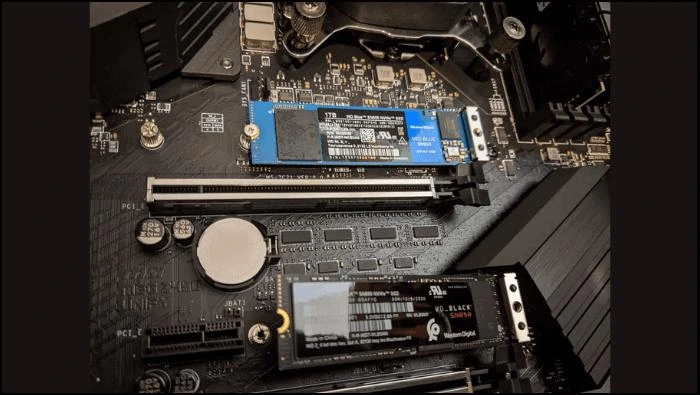
For an older PC still running a spinning mechanical hard drive, this single change beats every software tweak combined. A solid-state drive has no moving parts, so Windows loads in a fraction of the time and apps open almost instantly. If your boot is slow no matter what you disable, the drive is the bottleneck.
Most desktops and many laptops accept a 2.5-inch SATA SSD, and newer boards take much faster NVMe M.2 drives — check which your machine supports before buying. You can either do a clean install of Windows on the new drive, which is the tidiest result, or clone your existing installation across so you keep everything in place. The physical swap usually needs nothing more than a screwdriver, though laptops vary, so look up the steps for your exact model.
When in doubt, just use Sleep
Resuming from sleep will always beat a cold boot, because the system reloads from memory instead of rebuilding the session. If startup time genuinely annoys you day to day, the honest answer is to stop fully shutting down and use Sleep instead. It draws a little more power, but the cost is negligible.
There are still times a full shutdown makes sense — before travel, or when a machine needs a clean restart to clear problems. Sleep also leaves the PC able to wake from background activity, which you can rein in through power settings if it keeps stirring on its own. Used most of the time, though, Sleep makes the whole boot-speed question mostly disappear.
Why does Windows 11 boot slowly only after an update?
Updates install in two stages, and the second runs during shutdown and the next boot. Setting Active Hours moves that work to idle time, so a one-off slow boot after Patch Tuesday is normal rather than a fault.
Does Fast Startup ever cause problems?
It can on dual-boot systems or when you need BIOS access, since the saved state interferes. If you hit those issues, use Restart instead of Shut Down, or disable Fast Startup.
What to do first
Work top-down: check Last BIOS Time and the startup-impact ratings, disable the High-impact apps you don’t need, then turn on Fast Startup. If the BIOS number was high, enable Fast Boot. Set Active Hours so updates stop ambushing you. And if the machine still drags after all that, the drive is telling you it’s time for an SSD — the upgrade that turns a one-minute boot into a ten-second one.
