

You can download a YouTube video in several ways, and the right one depends on whether you want a real file you own or just offline playback inside the app. The cleanest official route is YouTube Premium, which saves videos for offline viewing but locks them to the app. For an actual file you can move, play in VLC, or convert to MP3, you need a desktop tool — and the safest of those is the free, open-source command-line program yt-dlp. Below are the methods that actually work in 2026, ranked by control and risk, plus the legal line worth knowing before you start.
Which method should you pick
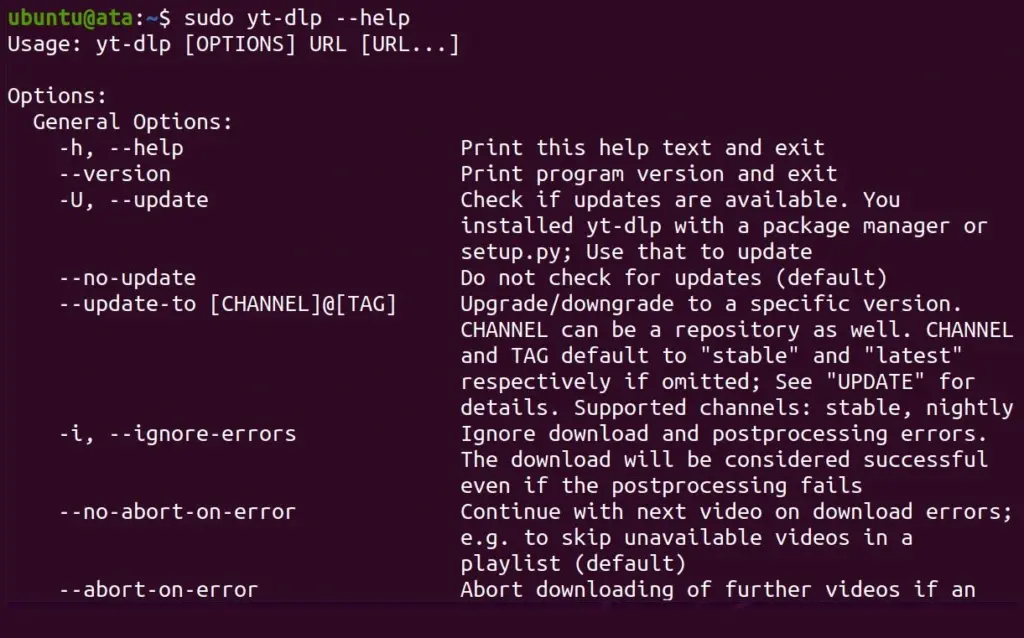
If you only want to watch on the go without ads, YouTube Premium is the simplest and most legitimate choice. If you want a portable file — to keep a clip, rip the audio, or archive a video you have rights to — a desktop downloader gives you the most control. Power users and anyone who hates ad-stuffed installers should go straight to yt-dlp.
The main risk isn’t the download itself; it’s the tools. Random “helper” sites and sideloaded extensions are where malware and shady ads hide. Before using any third-party option, check that it’s actively maintained, doesn’t bundle extras your antivirus flags, and isn’t asking for more than an email address.
Is it legal to download YouTube videos?
Downloading a video for your own personal offline use generally sits in a grey area rather than outright piracy, but it does run against YouTube’s terms of service, which only permit downloads through features the platform itself offers. The practical line most people follow: saving a clip for yourself is one thing; re-uploading, distributing, or monetizing someone else’s work is a clear violation and unfair to the creator.
Two situations are off the table regardless of method. Don’t pull down content that’s paywalled, age-gated as protected, or DRM-restricted, and don’t redistribute what you save. Ad revenue is how many creators earn a living, so treat ripping as a personal-archive tool, not a way to bypass the people who made the video.
The official route: YouTube Premium downloads
YouTube Premium is the only fully sanctioned way to take videos offline. As of 2026, after a price change that took effect in June, the US individual plan runs about $15.99 per month, with cheaper student and Premium Lite tiers and different pricing by country, including India where lower-cost options are available. Prices and tier features shift often, so confirm the current terms before subscribing.
The catch matters. Premium downloads aren’t real files. They behave like the offline mode in a streaming app: capped at 1080p, viewable only inside YouTube, and gone if your device doesn’t reconnect to the internet at least once every 30 days. You can’t open them in VLC or Plex, and you can’t convert them. To save offline on the app, tap the three-dot menu on a video and choose Download. If that limitation is fine for you, stop here — it’s the safest option. If you need an actual file, read on.
Desktop apps: the most control over a YouTube video link download
Third-party software gives you the real thing — a file you own, in the quality you choose. You paste a YouTube video link, the program grabs the highest-quality stream it can, and you get an MP4, MKV, or WEBM depending on resolution. These tools also handle playlists, whole channels, and audio extraction to MP3.
A quick note on formats explains what you’ll end up with:
| Quality | Typical format | Notes |
| Up to 1080p | MP4 | Most compatible, plays everywhere |
| 4K / 8K | MKV or WEBM | Matroska containers; hold video, subtitles, multiple codecs |
| Audio only | MP3 | Most downloaders rip audio directly |
yt-dlp — best free, safest pick. This open-source command-line tool downloads at the highest available resolution by default and works across roughly two thousand sites. It bundles no ads or installers, which is exactly why it’s the cleanest option. The trade-off is the learning curve: you’ll install Python (Anaconda is the simplest path) and run commands, ideally inside an editor like VS Code. Worth it if you download often or want zero risk of junkware. Not ideal if you want one-click simplicity.
4K Video Downloader Plus — best for most people. A simple paste-the-link interface that captures up to 8K, grabs subtitles, playlists and subscribed channels, and supports the major sites (YouTube, Vimeo, Facebook, TikTok, Twitch). It can extract MP3 on its own. The free version shows a banner and caps daily downloads, with paid tiers lifting the limits. Strong choice for anyone who wants a clean GUI without touching code; less suited to obscure sites beyond the big platforms.
VideoProc Converter — best if you also edit. Built around conversion, upscaling and stabilizing, with batch downloading and hardware acceleration for speed. Good for users who want one app to download and process footage. The free version limits conversions to short clips and supports fewer sites; the paid version opens up 4K downloads from a very wide site list. Overkill if downloading is all you need.
Extensions and helper sites: convenient, but handle with care
Browser extensions can add a download button right under a video, and “helper” websites let you paste a link and skip installing anything. Both are tempting for a fast yt video download, and both carry the most risk.
Because Google owns Chrome and its store, capable extensions are usually pushed out of the Web Store, which means sideloading — installing from a ZIP or CRX file with developer mode enabled. That’s doable, but it removes the store’s safety check, so only sideload tools with a clear, transparent install process. Helper sites are worse: they come and go, and popular ones often get sold and turn into ad traps or stop working with YouTube entirely. If you use one, never grant extra permissions, and scan anything you download.
Downloading on a phone
Mobile is deliberately harder because app stores block YouTube downloaders. On Android, you go around the Play Store: NewPipe is a lightweight alternative YouTube front-end with a built-in download option, and the desktop-grade 4K Video Downloader also has an Android build you sideload.
On iPhone and iPad, expect friction. Dedicated apps tend to get pulled fast, so the durable workaround is a file manager like Documents by Readdle — copy the video’s link, paste it into a download helper inside the app’s built-in browser, save the file, then move it into Photos. Alternatively, a desktop manager such as AnyTrans can download on a computer and transfer the file to your iPhone over a cable.
How to choose and stay safe
Match the tool to the goal. Want hassle-free offline viewing with no files to manage? Pay for Premium. Want a real, portable copy of a video you have the right to keep? Use yt-dlp if you’re comfortable with a command line, or 4K Video Downloader Plus if you want buttons.
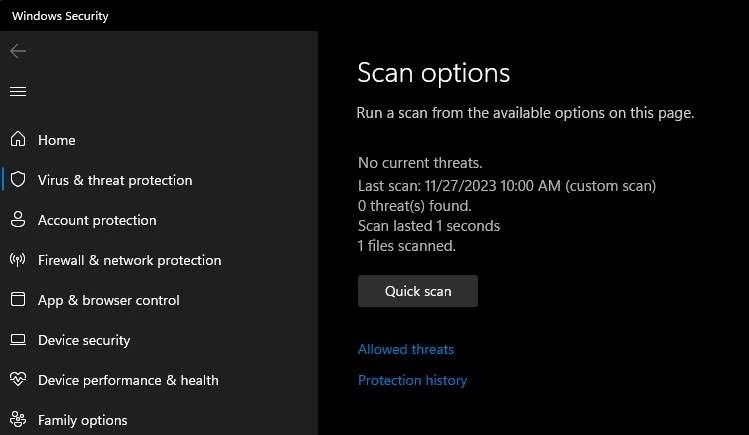
Whatever you choose, three habits keep you out of trouble: download only for personal use and never redistribute, get tools from their official project page rather than a random mirror, and run a quick antivirus check on any sideloaded app or helper-site file. The download is easy. Picking a trustworthy tool is the part that actually protects you.
